How to configure your Guild
Run the following command: /config guild to access your guild configuration.
There are currently two shortcuts available:
Info
You must either be the Guild Owner or have the Guild Configuration permission to access this command.
Torn API Key
The guild configuration is one of the few areas where a Torn API Key must be set.
If you are a Faction Leader, this API Key can be a Limited Access key, as it can also be used in the Faction Configuration.
Otherwise, you can simply use a Public Access API Key.
How to Configure
- Obtain your API Key from the Torn Settings Page.
- On the main page of
/config guild, click Edit Setting and select API Key from the dropdown menu. - Paste your API Key into the pop-up box and click Submit.
Torn Stats API Key
A Torn Stats API Key is required in both the Guild and Faction configurations.
It is currently used to retrieve:
- Battle Stats data for the Membership module
- Spy Reports for modules such as Retaliations, Ranked Warring, and Assists
Note
If you do not use these modules, you can leave the Torn Stats API Key blank.
How to Configure
- Generate or copy your Torn Stats API Key from your TornStats Account Settings page.
- Repeat steps 2 and 3 from the API Key configuration section above.
Bot Log Channel
The Bot Log Channel is where error logs from your bot are sent, both for Stig and for the bot administrators.
Errors related to Stig will automatically ping him, so there is no need to do so manually.
How to Configure
- If you do not already have a private channel for bots, create one and add both your bot and Stig.
- On the main page of
/config guild, click Edit Setting and select Bot Log Channel from the dropdown menu. - Choose the desired channel.
Tip
If the channel you want to use does not appear, try typing the name into the dropdown menu or use the search bar (especially useful on mobile).
Errors that concern bot owners will ping any roles configured in the Permissions System.
If no roles are configured, the bot will ping @everyone by default.
Permissions System
The Permissions System is a crucial part of the bot, as it determines who can access specific commands.
It works by linking Permission Groups to Discord Roles.
This pairing system controls which users inherit certain permissions.
How It Works
- Create a Permission Group in the bot (for example,
Jeff) - Add a Discord Role to that group (for example, the role
Potato) - The
Potatorole will inherit all permissions assigned to theJeffgroup. - As a result, any user with the
Potatorole will automatically have the permissions defined by theJeffgroup.
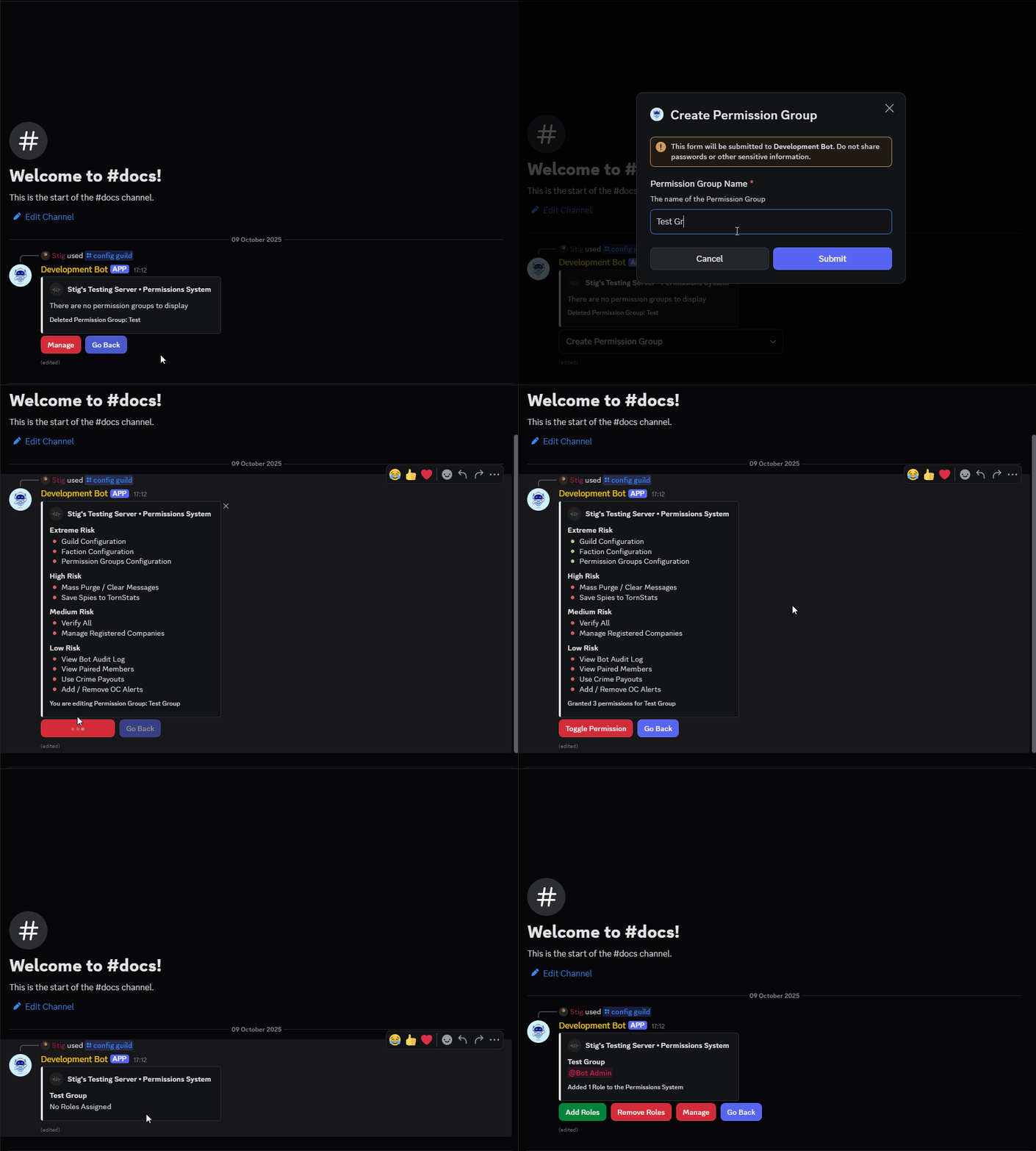
How to Configure
- Run the command
/config guildand open the Permissions System section. - Click Create Group to add a new Permission Group. Give it a clear, descriptive name (for example,
Leadership,Council,Giveaways, orMembers). - Once created, Toggle Permissions that you with to assign to the group, then Go Back
- Click Add Roles and select the Discord Role(s) you want to link to this group.
Click to expand to a GIF of the Permissions System
Info
- Your chosen roles will now automatically inherit the permissions assigned to their linked group.
- You can edit or remove these links at any time if your server structure changes.